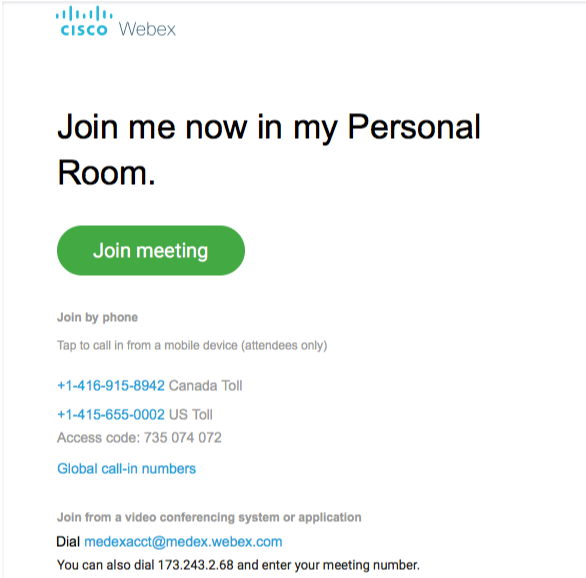
a) Open the Medex session invitation email and click on “Join Webex meeting” or if a meeting link was provided please see below.1.png 47.55 KB
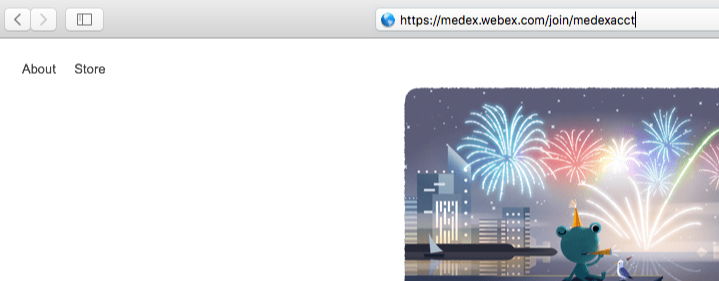
b) If a meeting link was provided enter the exact URL provided in your safari web browser. 2.png 92.56 KB
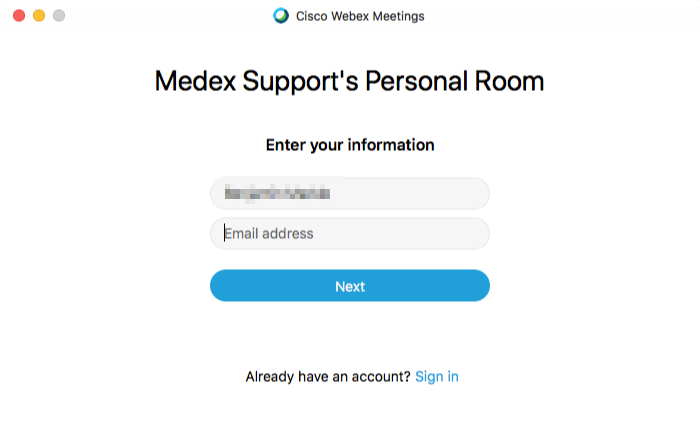
c) Put in your Name and Email address and click on “Next” 6.png 24.96 KB
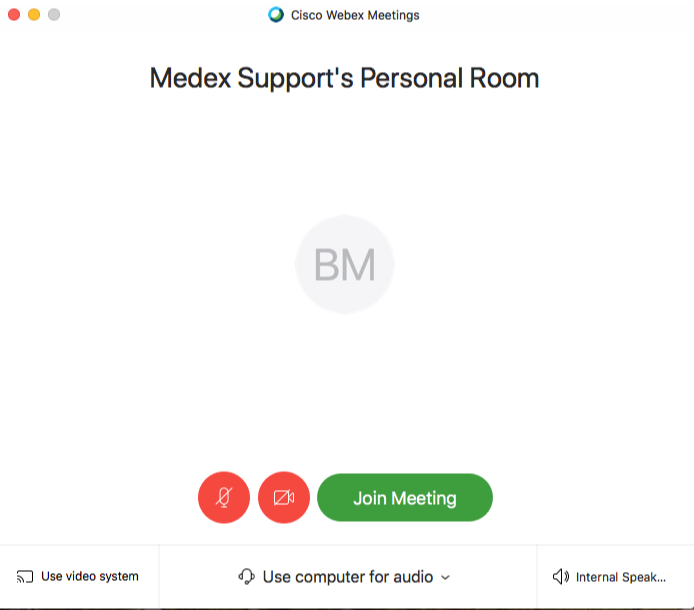
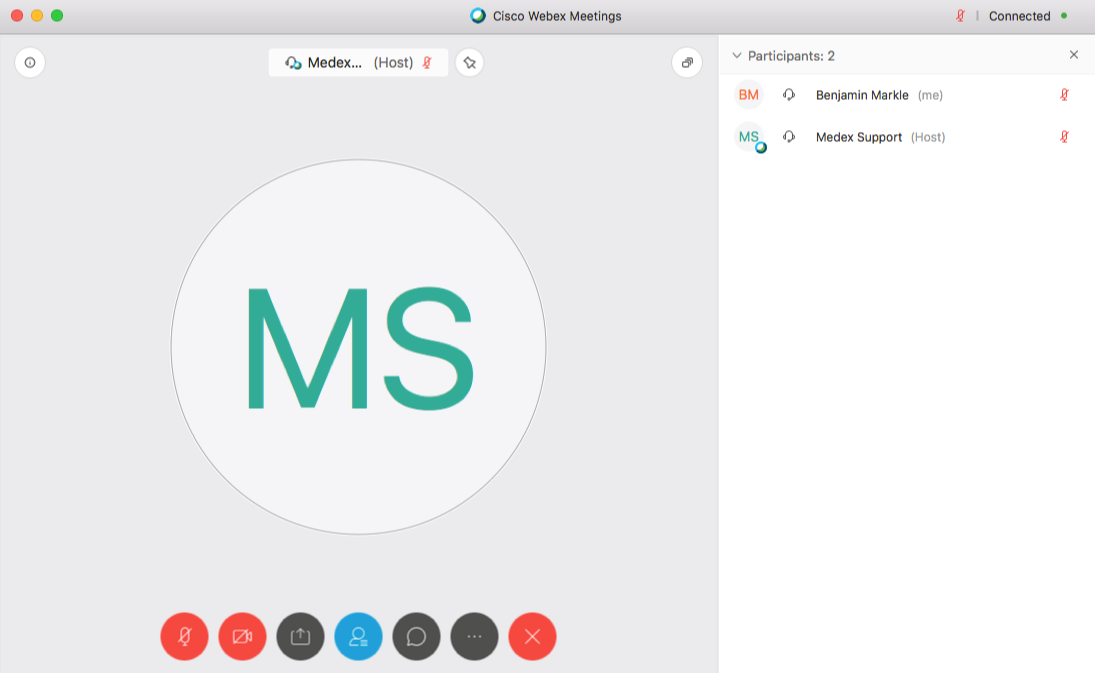
d) Connect to the audio and video using the “Audio and Video Connection” options. “Use computer for audio” is preferred. Ensure your microphone and webcam are not muted, the icons below will be red if they are muted. Select “Join Meeting” when ready. 7.png 36.36 KB
e) You will now be placed in the meeting or temporarily placed in the lobby until the meeting is ready. 8.png 62.15 KB
f) Click on the red “X” to leave the meeting once done.9.png 7.03 KB