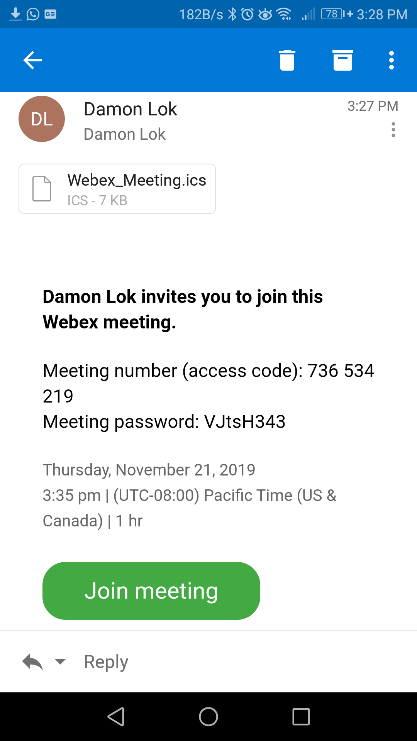
a) Open the Medex session invitation email and click on the green “Join meeting” button or see below if a text message with the meeting link was provided.7.png 36.55 KB
b) If a meeting link was provided in a text message, select the link.
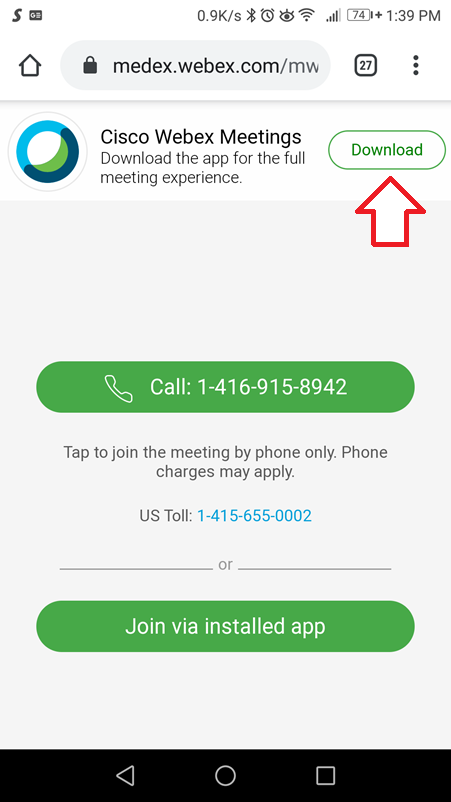
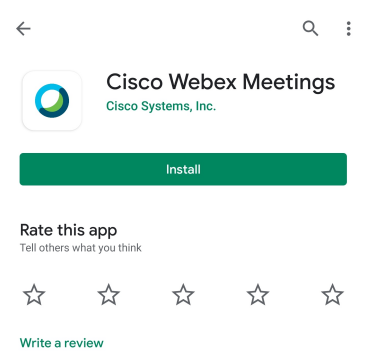
c) When joining for the first time, you will be prompted to download the Webex Meeting App. Follow the one-time process to install the app, allowing access to camera and mic when prompted.8.png 63.8 KBimage.png 30.59 KB
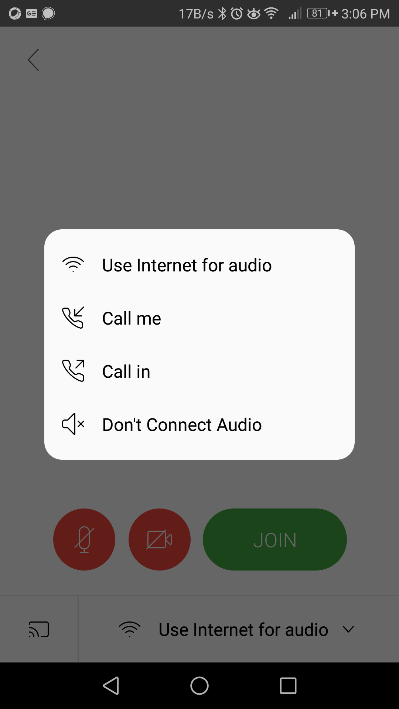
d) In the audio pop up, select “Use Internet for audio” if you are connected to a wireless network or have phone data available. 9.png 20.68 KB
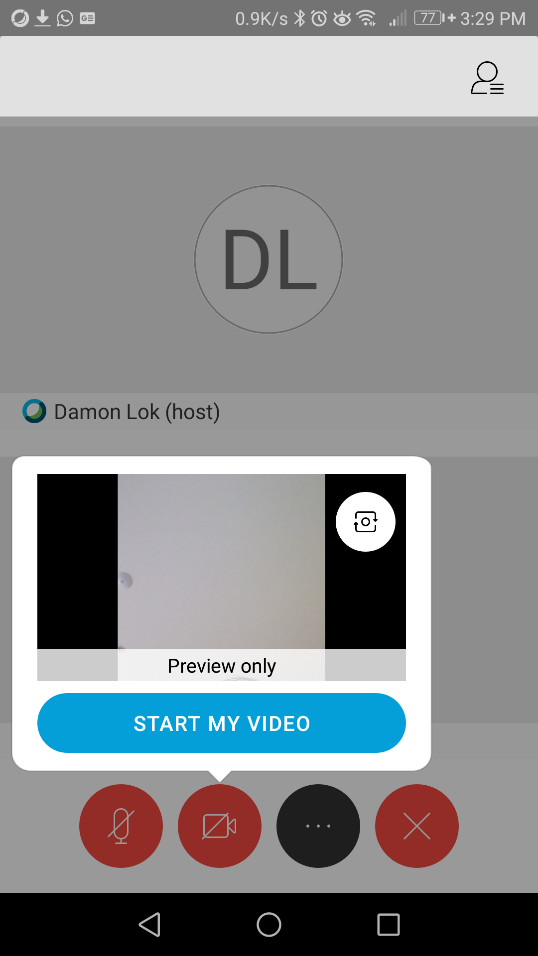
e) Tap the video camera icon and microphone icon once you’ve joined the session to activate your video on the mobile device. When these icons are red your video or microphone will be muted.10.png 90.81 KB
f) You will now be placed in the meeting or temporarily placed in the lobby until the meeting is ready.
g) Click on the red “X” to leave the meeting once done.